Types of Calendar Layouts: Which View to Use

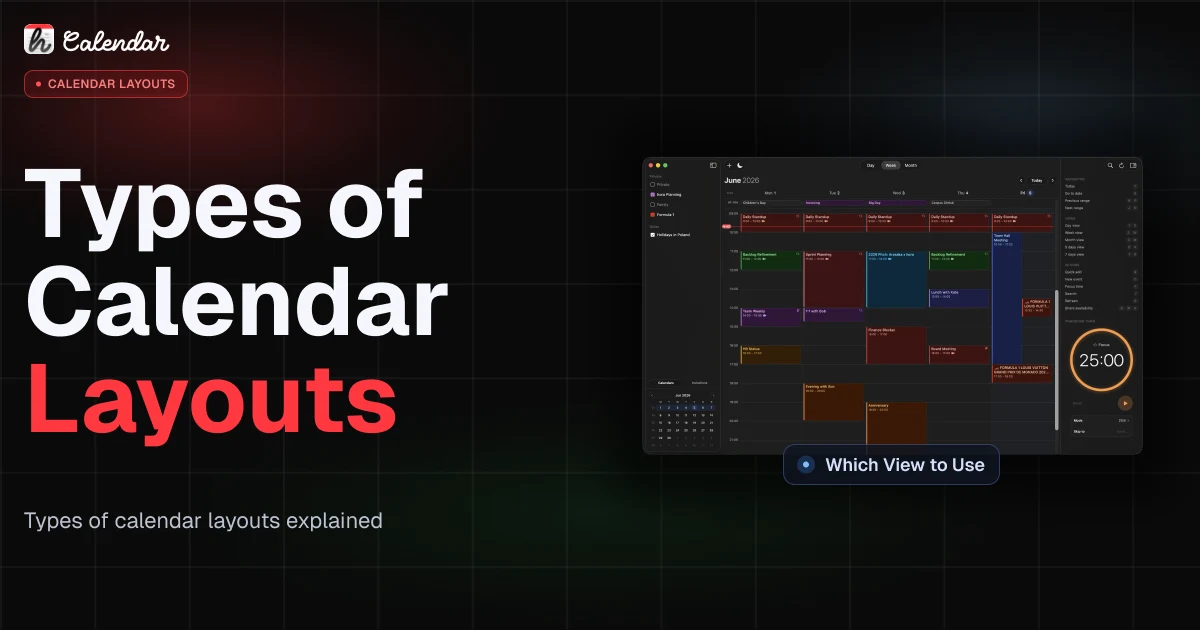
The main types of calendar layouts are day, week, work week, month, agenda or list, timeline or scheduler, and year or multi-week views. The best one depends on what you are trying to do: execute today, balance a week, scan deadlines, compare schedules, or plan further out.
No single layout is best for every job. A good calendar view is a lens. When the lens matches the planning problem, your calendar gets calmer. When it does not, even a simple week can feel noisy.
I build hora Calendar, so I think about this in product terms: the layout should help you make the next decision faster, not just show more boxes.
The main types of calendar layouts
Most calendar apps converge on a familiar set of views. Google Calendar, for example, lets users switch between Day, Week, Month, Year, Schedule, and a 4-day view in its web app (Google Calendar Help). Teamup documents an even wider set, including timeline, scheduler, table, list, agenda, and tiles views for different planning jobs (Teamup).
Here is the practical version:
Calendar layout matrix
Pick the view by the planning job, not by the screenshot.
The trap is choosing a layout because it looks clean in a screenshot. Choose it by the job you need it to do.
Day view: best for executing one schedule
Day view is the most focused calendar layout. It usually shows one day as an hourly grid, with all-day events at the top and timed events stacked in their exact slots.
Use day view when:
- You have back-to-back meetings.
- You need to protect deep work blocks.
- Your schedule changes hour by hour.
- You are trying to answer "what do I do next?"
- You need enough space to read event titles, locations, and meeting links.
Day view is especially useful when time is already constrained. If you have six meetings, two errands, and a focus block, month view will only tell you that the day is busy. Day view tells you where the pressure actually is.
It is also the best layout for execution support: timers, meeting-end alerts, travel time, and quick rescheduling. I covered this idea in Time Blocking App for Mac: 2026 Guide, where the real issue is not making blocks. It is living the blocks when the day moves.
The downside is tunnel vision. Day view can make tomorrow and Friday disappear. If you spend all week in day view, you may execute well and still overload yourself.
Week and work-week views: best for workload balance
Week view is the default planning layout for many people because it shows enough context without becoming abstract. It answers a different question than day view: "Is this week balanced?"
A good weekly calendar layout helps you see:
- Meeting clusters.
- Empty mornings or afternoons.
- Days that are overloaded before they start.
- Whether focus time exists or only lives in your head.
- How personal and work commitments collide.
Work-week view is a narrower version, usually Monday through Friday. It is useful if your weekends are intentionally separate or if you want maximum horizontal space for workdays. Full week view is better when weekend plans, travel, or family events affect how much recovery you actually have.
Week view is also the best home for time blocking. You can place blocks with enough detail to be useful, while still seeing whether the week has breathing room.
In hora, this is why week-style views matter so much. A native Mac calendar should make it fast to move between day, 3-day, 5-day, 7-day, and month views without turning calendar planning into tab management. I wrote more about that broader Mac workflow in Google Calendar App for Mac: What hora 1.0 Brings.
The weak spot: week view can still hide bigger patterns. If every week looks "fine" in isolation, you may miss that every Friday has become a deadline pile-up or that every second week has too many late meetings.
Month view: best for patterns, deadlines, and big-picture planning
Month view is the classic calendar grid: seven columns, multiple rows, one cell per day. It is familiar because it maps well to how people talk about time: next week, end of month, first Monday, last Friday.
Use month view when:
- You are tracking deadlines.
- You want to see travel, vacations, or school breaks.
- You are planning launches, billing cycles, or content calendars.
- You need to notice schedule density across several weeks.
- You care about patterns more than exact start times.
Month view is bad at detail by design. If you try to use it for precise time blocking, event titles get truncated and overlapping commitments become little colored fragments. That does not mean month view is weak. It means it is doing a different job.
The best use of month view is pattern recognition. You can see whether all your deadlines are landing in the same week, whether a project has enough runway, or whether you are accepting meetings on days that should be protected.
The planning move I like: start in month view, decide what the month is trying to protect, then drop into week view to make that real.
Agenda and list views: best for what is next
Agenda and list views remove the grid. Instead of showing time as boxes, they show events in chronological order.
That makes them excellent for:
- Mobile screens.
- Menu bar widgets.
- A quick morning scan.
- Event-heavy calendars.
- Reviewing upcoming meetings without dragging anything.
- Finding the next commitment without parsing a full grid.
Agenda view is underrated because it is not visually impressive. But it solves a real problem: sometimes you do not need to plan. You just need to know what is coming.
This is why menu bar calendars and desktop widgets often use agenda-style layouts. A full month grid in a tiny surface is mostly decoration. A short list of "now, next, later" is useful.
The tradeoff is that agenda view hides free space. You can see commitments, but not the shape around them. If you need to find a two-hour focus block, a grid-based day or week view is usually better.
Timeline, scheduler, and multi-calendar layouts
Timeline and scheduler layouts are more specialized. They are built for comparison.
A timeline view often lays events horizontally across time, sometimes with each calendar, person, room, or resource on its own row. A scheduler view may use columns for people or resources so you can compare availability side by side.
Use these layouts when:
- You manage rooms or equipment.
- You compare several people's schedules.
- You schedule shifts.
- You need to spot conflicts across calendars.
- You care about resources, not just your personal day.
For a solo calendar, this can feel like too much machinery. For a team, venue, clinic, school, or operations workflow, it can be the only layout that makes the problem visible.
The important distinction: day, week, and month views are centered on time. Scheduler layouts are centered on entities moving through time: people, rooms, teams, assets, projects.
If you are choosing a calendar app for personal productivity, you may not need these. If you are choosing for coordination, they matter.
Year and multi-week layouts: best for long-range planning
Year and multi-week views zoom out. They are not for deciding what to do at 2 p.m. They are for seeing shape.
Use them for:
- Quarters.
- Semesters.
- Product launches.
- Hiring plans.
- Travel seasons.
- Editorial calendars.
- Training blocks.
- Major deadlines with long lead times.
A year view is usually too compressed to show every detail, but that is the point. It helps you see whether the year has uneven load, whether vacations collide with launch windows, or whether a project is pretending to have more time than it does.
Multi-week layouts can be more practical than year view because they keep the week structure visible. A 6-week or 12-week view often matches how real planning works: sprint cycles, quarters, semesters, client projects.
The weak spot is execution. Long-range layouts are for orientation. Once the plan becomes real, you still need week and day views.
How to choose the right calendar layout
Do not start with "which layout looks best?" Start with these five filters.
| Planning question | Best layout |
|---|---|
| What do I do next? | Agenda or day view |
| Where can I fit this block? | Day or week view |
| Is this week overloaded? | Week or work-week view |
| What deadlines are coming? | Month view |
| Are several people or resources conflicting? | Timeline or scheduler view |
| What does the next quarter look like? | Multi-week or year view |
Then add context:
- Horizon: Today, week, month, quarter, year.
- Density: Sparse calendars tolerate month view; dense calendars need day/week/list.
- Action: Planning needs grids; execution often needs agenda.
- Device: Mobile favors agenda; desktop can handle grids.
- Stress level: Under pressure, simpler views usually win.
My default recommendation is simple:
- Use month view to orient.
- Use week view to balance.
- Use day view to execute.
- Use agenda view when you only need the next few commitments.
That rotation is more useful than looking for one perfect calendar layout.
It is also why I care about native calendar apps on Mac. A browser tab can show a calendar. A good desktop calendar should make switching views, creating events, joining meetings, and protecting focus time feel immediate. That product feel is part of the reason I wrote Native App vs Electron and PWA.
FAQ
What are the common types of calendar layouts?
The common types of calendar layouts are day, week, work week, month, agenda or list, timeline or scheduler, and year or multi-week views. Most calendar apps include at least day, week, month, and agenda-style views.
Which calendar layout is best for productivity?
Week view is usually the best productivity layout for planning because it shows workload balance. Day view is better for executing a packed schedule. Agenda view is better for quickly checking what is next.
Is week view better than month view?
Week view is better for detailed planning and time blocking. Month view is better for deadlines, patterns, travel, and big-picture planning. They solve different problems, so the best workflow often uses both.
What is an agenda calendar view?
An agenda calendar view shows upcoming events as a chronological list instead of a grid. It is useful for mobile screens, menu bar widgets, daily scans, and busy calendars where you mainly need to know what comes next.
Why do calendar apps offer multiple views?
Calendar apps offer multiple views because time has different planning scales. A day view helps with execution, a week view helps with balance, a month view helps with patterns, and timeline or scheduler views help compare calendars or resources.
If this helped you choose a calmer calendar layout, it did its job.
Follow the build at @moto_szama, check out hora Calendar, or reach out at hello@horacal.app.


